



Did you try the Generative AI Alt-text feature and find it problematic? Wish there was a faster way to workflow Alt-text and Actual-Text for your PDF document?
Many are experiencing application pause/lag/hang everytime they File > Place a graphic with this new Generative AI Alt-Text feature on. The first thing you should do is turn off the unhelpful Generative AI Alt-Text feature by going to Preferences > Generative AI and turning off both Alt-Text switches. Click OK to come out of Preferences; then restart InDesign. If you also do not want to see the large Alt-Text frame adornment icons in the lower-left side of the graphics frame, go to View menu > Extras > Hide Alt-Text Badge. Now, InDesign will not examine your graphics in the cloud and return faulty Alt-Text descriptions for you, and it will not consume account credits for this Generative AI feature.
But what if Generative AI already went through your document and wrote descriptions? Or what if you routinely need to apply intelligent and appropriate Alt-Text descriptions to graphics so that your exported PDFs and EPUBs are more accessible? While InDesign provides this feature under the Object menu > Object Export Options, it does not automate it; nor does it provide a keyboard shortcut that can open to the correct place in the dialog box. Without a script, this stage of the work is slow and tediously click-intensive.
Introducing the Accessibility Alt-Text Assistant script along with its similar companion, the Accessibility Alt-Text Reviewer script. These scripts allow you to automate going through all your graphics while you use Actual Human Intelligence™ to write meaningful Alt-Text accessibility descriptions. The Accessibility Alt-Text Assistant script produces an interactive dialog box that looks like this:
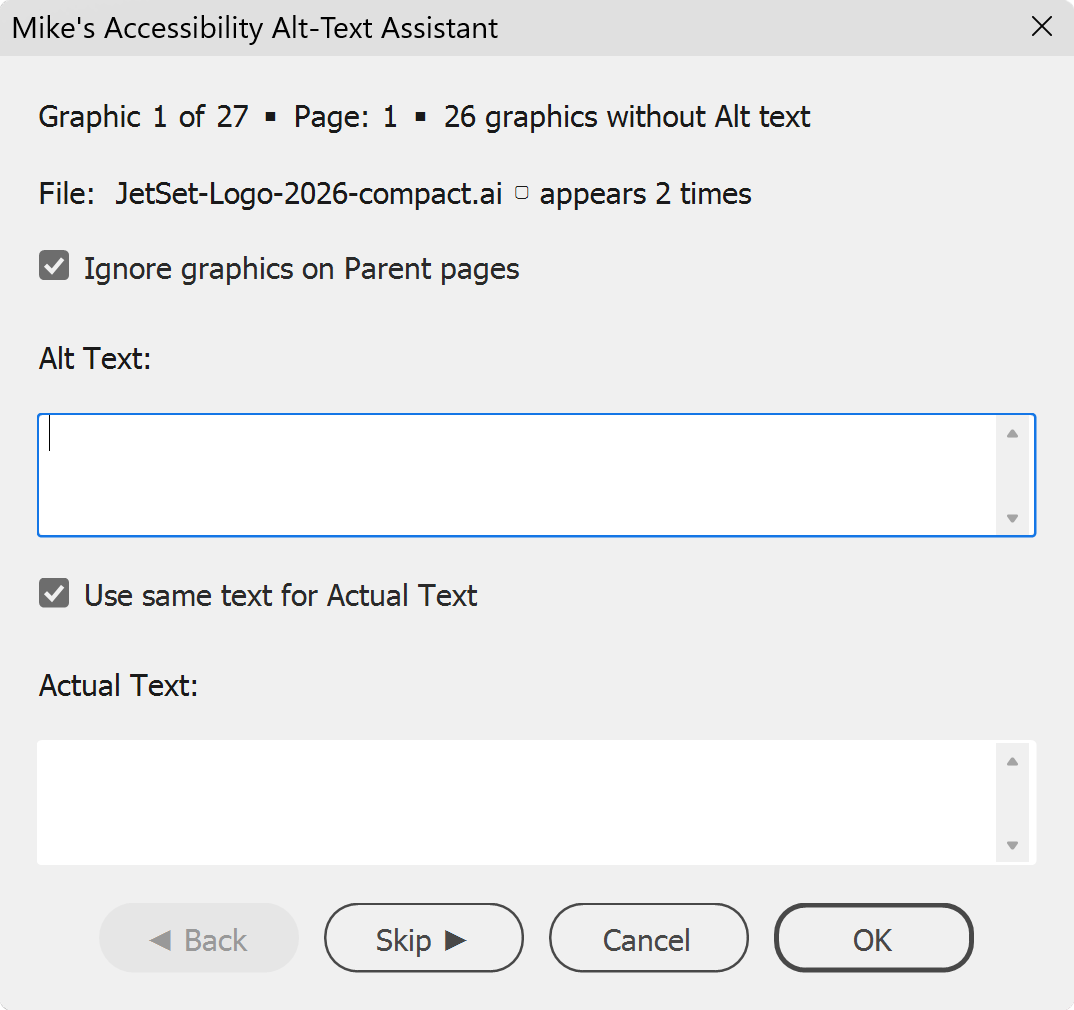
Simply type descriptions and click OK. InDesign immediately advances to the next graphic and you type another Alt-Text description. Optionally, you can choose to Ignore graphics on Parent pages, and you can provide either separate Actual Text or allow the text to be the same for both Alt and Actual Text. This script cues up only graphics that have no Alt-Text yet. When it works its way through the list, it announces it is done. It is quick and simple and uses no artificial intelligence.
The Accessibility Alt-Text Reviewer script is similar, with the exception that it marches through all your graphics so that you can inspect and/or edit each and every Alt-Text description in your InDesign document. This is useful if Generative AI has already done its damage and you need to clean it up speedily. It looks like this:
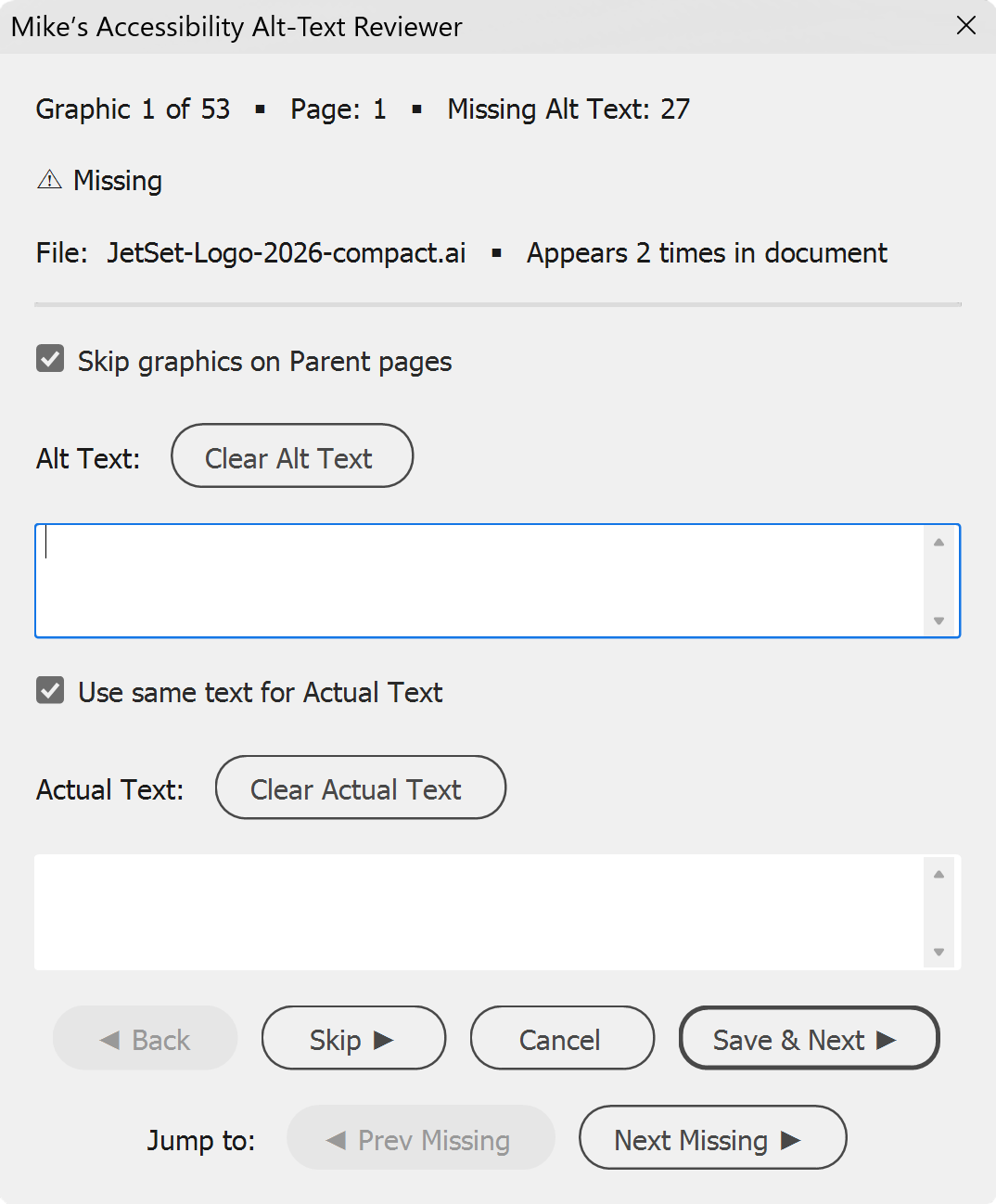
Like the other script, this one gives you the option to skip graphics, or skip graphics from Parent pages, and also allows you to have the Alt-Text and Actual Text be the same text or not. After typing a description, click Save & Next and the script moves to the next graphic. Both scripts operate quickly, and allow you to be in full control editorially. Try it by sending me a PayPal, and get back to productivity quickly!